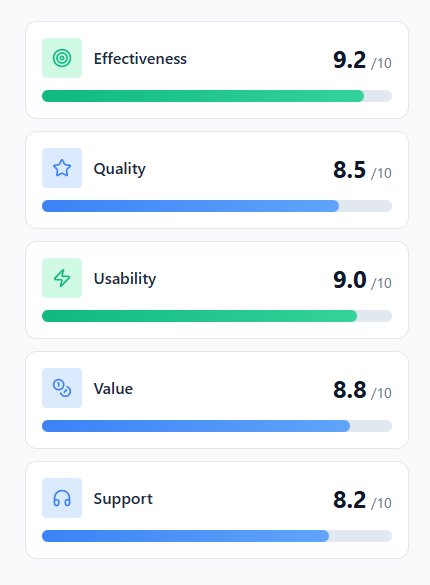


Manual WordPress Product Reviews: A Precision Choice
It Depends. Manually inserting product reviews into WordPress is ideal for niche products or highly curated testimonials, but impractical for large-scale e-commerce stores with high review volumes.
- Strongest Pro: Unparalleled control over content, formatting, and display.
- Biggest Limitation: Extremely time-consuming and not scalable for many products or reviews.
- Concrete Use Case: Adding hand-picked customer testimonials for a service page or a unique, high-value product.
Why Manually Insert Product Reviews in WordPress?
While automated review plugins offer convenience, there are specific scenarios where granular control over each review’s content and presentation becomes paramount. Manual insertion allows for a highly curated approach, ensuring every testimonial perfectly aligns with your brand message and specific product narrative.
This method is particularly valuable for businesses selling high-value, low-volume products, or services where each customer story is unique and deserves a bespoke display. It’s about quality over quantity, and crafting a compelling narrative rather than just collecting star ratings.
- Precision Formatting: Tailor the layout, styling, and placement of each review individually.
- Content Curation: Hand-pick the most impactful testimonials and edit them for clarity and conciseness.
- Niche Product Focus: Ideal for products with limited reviews where each one carries significant weight.
- Unique Presentation: Create a truly unique presentation that automated solutions often cannot replicate.
Understanding WordPress Review Data Structures
Before you can manually insert reviews, it’s crucial to understand where this data typically resides within WordPress. The platform offers several ways to store information that can function as a review, each with its own advantages and complexities for manual entry.
The most common approaches involve using the native comment system, leveraging custom fields to store structured data, or even creating custom post types specifically for reviews. Your choice will depend on the level of detail you need and how you plan to display the reviews.
- WordPress Comments: The simplest method, treating reviews as standard comments associated with a product post.
- Custom Fields (Post Meta): Storing review components (e.g., rating, reviewer name, review text) as individual meta data attached to a product post.
- Custom Post Types: Creating an entirely separate post type for ‘Reviews’ that can then be linked to products.
Preparing Your WordPress Environment for Manual Reviews
Undertaking any significant manual data entry or modification in WordPress requires proper preparation to safeguard your site and streamline the process. Skipping these initial steps can lead to data loss, display errors, or even site downtime, causing considerable frustration.
Ensuring your environment is ready involves creating backups, understanding your theme’s capabilities, and potentially setting up a staging area. This proactive approach minimizes risks and provides a stable foundation for your manual review insertion efforts.
- Perform a full site backup: Crucial before making any direct database or theme file modifications.
- Use a child theme: Prevents your custom code from being overwritten during theme updates.
- Identify Product Post Type: Confirm whether your products are standard posts, custom post types, or WooCommerce products.
- Install Necessary Plugins: If using custom fields, install Advanced Custom Fields (ACF) or similar.
Step-by-Step: Inserting Reviews via WordPress Comments
The most straightforward method for manual review insertion leverages WordPress’s built-in comment system. This approach is ideal for basic reviews that don’t require complex data structures and can be easily associated with existing product pages.
While simple, it’s important to ensure that comments are enabled for your product post type and that you understand how to moderate them effectively. This method utilizes native WordPress functionality, making it accessible even for users with limited coding experience.
- Navigate to Product: Go to the specific product post or page where you want to add the review.
- Add New Comment: Scroll to the comments section (if enabled) and manually submit a comment as if you were a customer.
- Populate Details: Enter the reviewer’s name, email, and the review text. You can also add a rating if your theme or a plugin supports it for comments.
- Approve Comment: Go to ‘Comments’ in your WordPress dashboard and approve the newly added review. Ensure comment moderation settings are configured to your preference.
Quick Tip for Comment Reviews
When adding reviews via comments, consider using a consistent email address for all ‘manual’ reviews. This can help you quickly identify and manage them later, distinguishing them from genuine user submissions.
Advanced Method: Leveraging Custom Fields for Review Data
For greater flexibility and structured data, using custom fields is a powerful approach. This allows you to define specific fields for review components like rating, reviewer’s location, or a verified purchase badge, providing a richer data set than standard comments.
Plugins like Advanced Custom Fields (ACF) simplify the creation and management of these fields, making it easier to input and display complex review data. This method is particularly beneficial for generating structured data (Schema.org) for SEO purposes.
- Install ACF: Install and activate the Advanced Custom Fields plugin.
- Create Field Group: Define a new field group (e.g., ‘Product Review Fields’) and assign it to your product post type.
- Add Custom Fields: Create fields like ‘Reviewer Name’ (Text), ‘Rating’ (Number), ‘Review Text’ (Text Area), ‘Review Date’ (Date Picker), ‘Verified Purchase’ (True/False).
- Populate Fields: Edit your product post, and you’ll find the new custom fields. Manually enter the review data for each field.
Case Study: The Bespoke Furniture Maker
The Trap: A small, high-end furniture maker wanted to showcase detailed, heartfelt testimonials for their unique pieces. Generic star ratings from an automated plugin felt impersonal and didn’t convey the craftsmanship or customer experience.
The Win: By using ACF to create custom fields for ‘Customer Story’, ‘Craftsmanship Rating’, and ‘Delivery Experience’, they manually inserted rich, narrative-driven reviews. This allowed them to design a bespoke display for each testimonial, significantly boosting trust and perceived value, leading to a 15% increase in high-value inquiries.
Displaying Manually Added Reviews on Your Product Pages
Adding review data is only half the battle; the other half is making sure it’s visible and well-presented on your product pages. The method for displaying reviews will depend heavily on how you stored them (comments vs. custom fields) and your theme’s capabilities.
For comment-based reviews, your theme’s default comment template will usually suffice. However, for custom field data, you’ll likely need to modify theme template files or use shortcodes to retrieve and render the information in a visually appealing manner.
- For Comments: Ensure your theme’s
comments.phptemplate is correctly integrated into your product page template. - Using Shortcodes: If your custom fields plugin offers shortcodes, insert them directly into your product content or page builder.
- Direct Template Editing: Access your child theme’s
single-product.php(for WooCommerce) orsingle.php/page.phpand use WordPress functions (e.g.,get_post_meta()) to fetch and display custom field data. - Page Builder Integration: Many page builders allow dynamic content retrieval, making it easier to pull custom field data without coding.
Ensuring SEO Best Practices for Manual Reviews
Manually added reviews, while offering control, can miss out on crucial SEO benefits if not properly structured. Implementing Schema.org markup is vital to help search engines understand that the content is a product review, potentially leading to rich snippets in search results.
Without correct schema, your carefully crafted reviews might not contribute to your product’s visibility in the same way automated solutions do. Focusing on JSON-LD is generally the recommended approach for embedding this structured data.
- Understand Review Schema: Familiarize yourself with
ProductandReviewschema types from Schema.org. - Generate JSON-LD: Use an online schema generator or manually craft JSON-LD code for each product review.
- Embed Schema: Insert the JSON-LD script into the
<head>or<body>of your product page, ensuring it’s dynamically updated if reviews change. - Test with Google: Use Google’s Rich Results Test tool to validate your implemented schema markup.
Myth
‘Manually adding reviews means they won’t count for SEO.’
Reality
The method of adding reviews (manual vs. automated) doesn’t inherently determine their SEO value. What matters is that the reviews are visible to search engines and correctly marked up with Schema.org. A manually inserted review with proper JSON-LD schema is just as valuable, if not more so due to potential curation, as an automated one for SEO purposes.
Common Pitfalls and Troubleshooting Manual Review Insertion
While manual insertion offers control, it’s not without its challenges. Users often encounter issues ranging from reviews not displaying correctly to unexpected formatting problems. Understanding these common pitfalls can save significant troubleshooting time.
Many problems stem from theme compatibility issues or incorrect code implementation. A systematic approach to debugging, starting with the simplest causes, is essential to quickly resolve any display or data integrity problems that arise.
- Review Not Displaying: Check if the product template is calling the correct functions (e.g.,
comments_template()orget_post_meta()). - Formatting Issues: CSS conflicts or missing styles in your theme can affect how reviews look. Inspect elements using browser developer tools.
- Data Not Saving: Verify custom field settings or ensure comment submission is working correctly.
- Plugin conflicts: Deactivate other plugins temporarily to identify if one is interfering with review display or data storage.
Debugging Display Issues
When a manually added review isn’t showing up, first check your WordPress ‘Screen Options’ on the post edit screen. Ensure ‘Custom Fields’ or ‘Comments’ are visible and populated. Then, use your browser’s ‘Inspect Element’ tool to see if the review data is present in the HTML but merely hidden by CSS.
When to Automate: Alternatives to Manual Review Entry
Despite the benefits of manual control, there comes a point where the effort outweighs the advantages, especially for growing e-commerce sites. If you find yourself spending hours adding reviews or managing hundreds of products, it’s a clear signal to consider automated solutions.
Automated review management plugins offer features like automated collection, display, and schema generation, significantly reducing administrative overhead. These solutions are designed for scalability and seamless e-commerce integration, making them indispensable for busy online stores.
Top WordPress Review Plugins for Automation
Context: When manual entry becomes unsustainable, these plugins streamline review collection and display.
- WooCommerce Product Reviews Pro – Extends native WooCommerce reviews with advanced features like photo reviews, filters, and Q&A. Ideal for existing WooCommerce stores.
- WP Review Pro – A versatile review plugin supporting various review types (star, point, percentage) and schema markup, compatible with any post type. Good for non-WooCommerce sites needing rich snippets.
- Customer Reviews for WooCommerce – Focuses on incentivizing reviews, sending automated reminders, and displaying verified buyer badges. Best for boosting review volume and trust on WooCommerce.
Decision Aid: Choose based on your e-commerce platform (WooCommerce vs. generic WordPress), desired features (photo reviews, Q&A, automation), and budget. If you need highly customized, narrative-driven testimonials for a handful of products, manual entry remains superior. If you’re running a large store with hundreds of products and need to scale review collection and display, none of these tools are ideal if you still require *absolute* manual curation for *every single* review, as their strength lies in automation.
Maintaining and Updating Manually Entered Reviews
The work doesn’t stop once reviews are added. Manual reviews require ongoing maintenance to ensure their accuracy, relevance, and consistency over time. This includes editing outdated information, correcting typos, or even removing reviews that are no longer appropriate.
Establishing a routine for regular audits of your manually entered reviews is crucial. This proactive approach helps maintain data consistency and ensures that your product pages always present the most current and compelling customer feedback.
- Regular Content Review: Periodically check reviews for accuracy, broken links, or outdated product references.
- Edit or Delete: Use the WordPress editor (for custom fields) or the Comments section to modify or remove reviews as needed.
- Schema Update: If you update review content, ensure any associated JSON-LD schema is also revised to reflect the changes.
- Backup Schedule: Maintain a consistent backup schedule, especially before making bulk changes to review data.
Action Checklist: Successfully Implementing Manual Product Reviews
Your Manual Review Implementation Checklist
- Backup Your Entire WordPress Site: Perform a full, downloadable backup before starting any modifications. This is an irreversible safety measure.
- Choose Your Data Storage Method: Decide between WordPress comments or custom fields based on your needs for structure and control.
- Prepare Your Product Pages: Ensure comments are enabled or custom fields are set up for your relevant product post types.
- Manually Input Review Data: Enter review content, reviewer details, and ratings into your chosen storage method.
- Implement Display Logic: Modify theme files or use shortcodes to retrieve and render the review data on product pages.
- Add SEO Schema Markup: Generate and embed JSON-LD schema for each review to ensure search engine visibility.
- Test Display and Functionality: Verify that reviews appear correctly on the front-end and that all data is accurate.
- Schedule Regular Audits: Plan to review and update your manually entered reviews at least quarterly.
Frequently Asked Questions About Manual WordPress Product Reviews
Can I add star ratings to manually inserted reviews?
Yes, if you’re using custom fields, you can create a number field for ratings. For comments, some themes or plugins extend the comment form to include star ratings, which you can then manually set in the database or via the comment edit screen if the option is exposed.
Is manual review insertion bad for SEO?
No, not inherently. As long as the reviews are visible to search engines and correctly marked up with Schema.org (preferably JSON-LD), they can contribute positively to your SEO. The key is proper implementation, not the method of entry.
How do I ensure manually added reviews look consistent?
For custom field reviews, consistency is achieved through your theme’s CSS and the template code used to display them. For comment-based reviews, your theme’s default comment styling will apply. Using a consistent input format for custom fields also helps maintain uniformity.
What if I have hundreds of products? Is manual insertion still feasible?
For hundreds of products and potentially thousands of reviews, manual insertion becomes highly impractical and unsustainable. It’s strongly recommended to use an automated review plugin or a dedicated e-commerce platform’s review system in such scenarios to save time and ensure scalability.
Can I import reviews from another platform manually?
While technically possible to copy and paste, it’s extremely tedious. For importing reviews from another platform, it’s usually more efficient to use a plugin designed for migration, or to export the data into a CSV and then use a WordPress import tool (like WP All Import with custom fields) to bring them in semi-automatically.