
Immediate Action Required: Resolve WC AJAX Update Order Review Errors
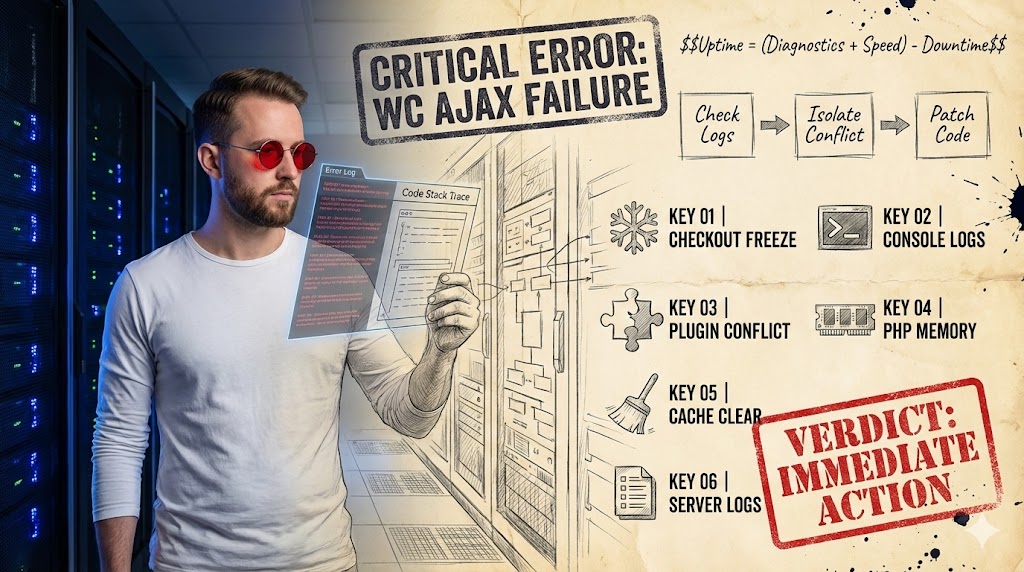
Critical Failure. This error demands immediate attention for any WooCommerce store owner as it directly impacts checkout completion. It is suitable for those prepared to dive into technical diagnostics, but unsuitable for users lacking access to server logs or WordPress backend tools.
- Restores crucial checkout functionality, preventing lost sales.
- Requires significant technical expertise in WordPress, PHP, and JavaScript debugging.
- Essential when customers cannot complete purchases due to checkout processing failures.
Understanding the ‘WC AJAX Update Order Review’ Error
The ‘WC AJAX Update Order Review’ error is a critical issue that prevents customers from completing their purchases on a WooCommerce store. This specific error typically manifests during the final stages of checkout when the system attempts to update order details via an AJAX request, often after a shipping method or payment gateway selection. When this request fails, the checkout process stalls, leading to a frustrating experience for the user and direct revenue loss for the business.
Identifying this error early is paramount for maintaining a functional e-commerce platform. It signals a breakdown in the communication between the client-side browser and the server, specifically concerning the dynamic recalculation and display of order information. Without a successful AJAX update, the checkout cannot proceed, rendering the entire purchase flow inoperable.
- Checkout Page Freezes: The most common symptom, where the checkout page becomes unresponsive or displays a loading spinner indefinitely.
- Error Messages: Generic messages like ‘Something went wrong’ or specific console errors related to AJAX calls.
- Incomplete Orders: Customers abandon carts due to inability to finalize the purchase.
- Console Log Warnings: Browser developer tools show network errors (e.g., 500 Internal Server Error, 400 Bad Request) or JavaScript exceptions.
- Server Log Entries: PHP errors or fatal warnings related to WooCommerce or core WordPress functions.
Pinpointing the Root Causes of Purchase Failures
Unraveling the ‘WC AJAX Update Order Review’ error requires a systematic approach, as its origins can be diverse, spanning server configurations, plugin conflicts, and even database inconsistencies. The core problem lies in the inability of the AJAX request to successfully communicate with the server to update the order review, often due to an unexpected response or a complete lack of one. Understanding these underlying causes is the first step toward effective resolution.
Common culprits range from insufficient server resources to intricate JavaScript conflicts introduced by themes or other plugins. A single misconfiguration or an outdated component can disrupt the entire checkout flow, making a detailed investigation essential. Identifying whether the issue is server-side or client-side is a critical distinction that guides the subsequent debugging process.
- Server Resource Limits: Insufficient PHP memory limit or execution time can cause AJAX requests to time out.
- Plugin or Theme Conflicts: Incompatible code from third-party extensions can interfere with WooCommerce’s core AJAX functionality.
- JavaScript Errors: Frontend JavaScript conflicts prevent the AJAX request from being properly initiated or processed.
- Corrupted Database: Issues with WooCommerce sessions, transients, or other critical data can lead to processing failures.
- Caching Issues: Aggressive caching plugins or server-level caching can serve outdated content, disrupting dynamic AJAX calls.
Step-by-Step Diagnostic Workflow for WooCommerce
When confronted with the ‘WC AJAX Update Order Review’ error, a structured diagnostic workflow is indispensable. Randomly disabling plugins or tweaking settings can exacerbate the problem or introduce new issues. The goal is to isolate the source of the error systematically, moving from the most common causes to more complex ones, while carefully documenting each step and its outcome.
Starting with basic checks and progressively narrowing down the possibilities helps to efficiently identify the problematic component. This methodical approach minimizes downtime and prevents unnecessary changes to a live production environment. Always ensure you have a recent backup before initiating any significant changes to your WordPress installation.
- Enable Debug Logging: Activate
WP_DEBUGinwp-config.phpto capture PHP errors. - Check Browser Console: Open developer tools (F12) and inspect the ‘Console’ and ‘Network’ tabs for JavaScript errors or failed AJAX requests.
- Isolate Theme/Plugin Conflicts: Switch to a default WordPress theme (e.g., Storefront) and deactivate all non-WooCommerce plugins.
- Review Server Error Logs: Access your hosting control panel or SSH to check Apache/Nginx error logs for server-side issues.
- Test with Different Browsers/Devices: Rule out client-specific issues by testing the checkout process on multiple browsers and devices.
Insight
Before making any changes, always duplicate your live site to a staging environment. This allows for safe debugging without impacting your customers or live sales.
Server-Side & Configuration Pitfalls
Many ‘WC AJAX Update Order Review’ errors originate from the server environment or WordPress configuration settings. These issues are often invisible to the end-user and require direct access to server logs or WordPress core files for diagnosis. Common culprits include insufficient PHP resources, restrictive server security modules, or incorrect file permissions that prevent WooCommerce from executing its AJAX requests properly.
Addressing these server-side issues typically involves adjusting values in your php.ini file, modifying .htaccess rules, or consulting with your hosting provider. Overlooking these foundational elements can lead to persistent errors, even after extensive plugin and theme troubleshooting. Ensuring your server meets WooCommerce’s minimum requirements is a crucial first step.
- Increase PHP Memory Limit: Edit
wp-config.phpto setdefine('WP_MEMORY_LIMIT', '256M');or higher. - Adjust PHP Max Execution Time: Modify
php.inior.htaccessto increasemax_execution_timeto 120 or 300 seconds. - Check Mod_Security Rules: Server firewalls like mod_security can sometimes block legitimate AJAX requests; temporarily disabling or whitelisting rules might be necessary.
- Verify File Permissions: Ensure WordPress core files and folders have correct permissions (e.g., 755 for folders, 644 for files).
- Update PHP Version: Ensure your server is running a PHP version compatible with your WooCommerce and WordPress versions, ideally PHP 7.4 or 8.x.
Myth
The ‘WC AJAX Update Order Review’ error is always caused by a faulty plugin.
Reality
While plugin conflicts are common, a significant portion of these errors stem from server resource limitations, outdated PHP versions, or restrictive server configurations, which are often overlooked during initial troubleshooting.
Navigating Theme and Plugin Conflicts
Theme and plugin conflicts are notoriously common causes of the ‘WC AJAX Update Order Review’ error. Many developers customize WooCommerce templates or add JavaScript functionalities that can inadvertently clash with WooCommerce’s core AJAX operations. This interference can prevent the checkout process from updating correctly, leading to a stalled order review.
Identifying the specific conflicting element requires a methodical approach of deactivation and re-activation. It’s crucial to test the checkout process after each change to pinpoint the exact source of the problem. Prioritizing updates and choosing well-maintained extensions can significantly reduce the likelihood of encountering these conflicts.
- Deactivate All Plugins: Temporarily disable all plugins except WooCommerce and its dependencies.
- Switch to a Default Theme: Activate a standard WordPress theme like Storefront or Twenty Twenty-Four.
- Re-enable One by One: Reactivate plugins one by one, testing the checkout after each activation until the error reappears.
- Check for Theme Overrides: Custom WooCommerce template files in your theme (e.g., in
your-theme/woocommerce/) can cause issues; temporarily rename the WooCommerce folder in your theme. - Update Everything: Ensure WordPress, WooCommerce, your theme, and all plugins are running their latest compatible versions to rule out known bugs.
Database Integrity and Data Corruption
Beyond server configurations and code conflicts, the ‘WC AJAX Update Order Review’ error can sometimes be traced back to issues within your WordPress database. Corrupted data, expired transients, or problematic session management can disrupt the delicate balance required for a smooth checkout process. When the database fails to provide or store necessary information correctly, AJAX requests can fail, leading to purchase errors.
Regular database maintenance and optimization are crucial for preventing these types of issues. While direct database manipulation should be approached with extreme caution, using reputable plugins or tools for cleaning and repairing can resolve many underlying data integrity problems. Always back up your database before performing any maintenance tasks.
- Clear WooCommerce Transients: Use a plugin like WP-Optimize or a dedicated script to clear expired WooCommerce transients, which can sometimes get corrupted.
- Optimize Database Tables: Utilize phpMyAdmin or a WordPress optimization plugin to repair and optimize your database tables.
- Check Session Management: Ensure your WordPress installation is correctly handling user sessions, as WooCommerce relies on them for cart and checkout data.
- Review Database Prefix: Confirm that your
wp-config.phpdatabase prefix matches the actual prefix in your database. - Scan for Corrupted Data: Use database repair tools (often available via your hosting provider or cPanel) to identify and fix corrupted tables.
Insight
Many hosting providers offer automated daily backups. Verify these are active and regularly test a restore process to ensure data integrity and quick recovery in case of a critical failure.
Resolving Frontend AJAX and JavaScript Issues
Client-side JavaScript errors or AJAX request failures are a direct and common cause of the ‘WC AJAX Update Order Review’ problem. These issues occur when the browser cannot properly execute the JavaScript code responsible for sending or receiving data from the server during checkout. This often results in a non-responsive checkout page or visible errors in the browser’s developer console.
Debugging frontend issues requires familiarity with browser developer tools, specifically the ‘Console’ and ‘Network’ tabs. These tools provide invaluable insights into JavaScript errors, failed network requests, and the responses received from the server. Identifying the exact script or request that is failing is key to resolving these client-side complications.
- Inspect Browser Console: Look for red error messages in the JavaScript console (F12) that indicate script conflicts or undefined functions.
- Monitor Network Requests: In the ‘Network’ tab, observe the AJAX request to
?wc-ajax=update_order_review. Check its status code (should be 200 OK) and response. - Disable JavaScript Optimization: Temporarily turn off any caching or optimization plugins that minify or combine JavaScript files, as these can sometimes introduce errors.
- Check for jQuery Conflicts: Ensure only one version of jQuery is being loaded and that other scripts are not conflicting with it.
- Use a CDN for Static Assets: If assets are loading slowly, a Content Delivery Network (CDN) can improve load times, reducing potential AJAX timeouts.
Case Study: The Phantom Checkout
The Trap A store owner noticed customers abandoning carts at the final review step, reporting a frozen page. Browser console showed a generic ‘Failed to load resource’ for the update_order_review AJAX call, but server logs were clean. The owner suspected a plugin conflict.
The Win After extensive plugin deactivation, the issue persisted. A deeper dive into the browser’s network tab revealed the AJAX request was being blocked by a security plugin’s frontend JavaScript, which was incorrectly flagging the legitimate request as malicious. Whitelisting the specific AJAX endpoint in the plugin’s settings immediately resolved the issue, restoring full checkout functionality.
Proactive Measures to Safeguard Your Checkout
Preventing the ‘WC AJAX Update Order Review’ error from recurring is far more efficient than constantly reacting to it. Implementing a robust set of proactive measures can significantly enhance the stability and reliability of your WooCommerce checkout process. These strategies focus on maintaining a healthy WordPress environment, ensuring compatibility, and establishing clear testing protocols.
Regular maintenance, careful updates, and a structured approach to introducing new functionalities are key. A stable checkout directly translates to consistent sales and improved customer satisfaction. Investing time in prevention will save considerable effort and potential revenue loss in the long run.
- Implement a Staging Environment: Always test updates, new plugins, or theme changes on a staging environment before deploying to live.
- Schedule Regular Backups: Ensure daily, automated backups of both your database and files are in place and regularly tested.
- Monitor Server Resources: Keep an eye on your hosting’s CPU, memory, and disk usage to prevent resource exhaustion.
- Use Reputable Plugins & Themes: Stick to well-coded, regularly updated plugins and themes from trusted developers.
- Maintain WordPress & WooCommerce: Keep core WordPress, WooCommerce, and all extensions updated to their latest stable versions.
Action Checklist: Resolving the WC AJAX Update Order Review Error
- Immediately enable WordPress debug logging and check browser console for errors.
- Create a full backup of your website (files and database) before proceeding.
- Switch to a default WordPress theme (e.g., Storefront) and deactivate all non-WooCommerce plugins.
- Test the checkout process; if fixed, reactivate plugins one by one to identify the culprit.
- Review server error logs (PHP, Apache/Nginx) for fatal errors or warnings.
- Increase PHP memory limit and execution time in
wp-config.phporphp.ini. - Clear all caching (plugin, server-level, browser) and optimize your database.
- If the issue persists, consider temporarily disabling server security modules (e.g., mod_security) with caution.
- If all else fails, prepare detailed logs and contact your hosting provider or a WooCommerce expert.
What is the ‘WC AJAX Update Order Review’ error?
It’s a critical WooCommerce checkout error where the system fails to update order details dynamically via an AJAX request, often leading to a frozen checkout page and preventing customers from completing purchases.
How can I quickly identify if I have this error?
Look for a non-responsive checkout page, indefinite loading spinners, generic error messages during checkout, or specific AJAX-related errors in your browser’s developer console (F12) under the ‘Console’ or ‘Network’ tabs.
Is it safe to disable plugins to find the conflict?
Yes, but always do so on a staging environment first. On a live site, temporarily disabling plugins can affect functionality, so ensure you have a recent backup and re-enable them methodically.
When should I contact my hosting provider for this error?
You should contact your hosting provider if server-side issues are suspected, such as low PHP memory limits, restrictive firewall rules (mod_security), or errors appearing in your server’s Apache/Nginx error logs that you cannot resolve yourself.